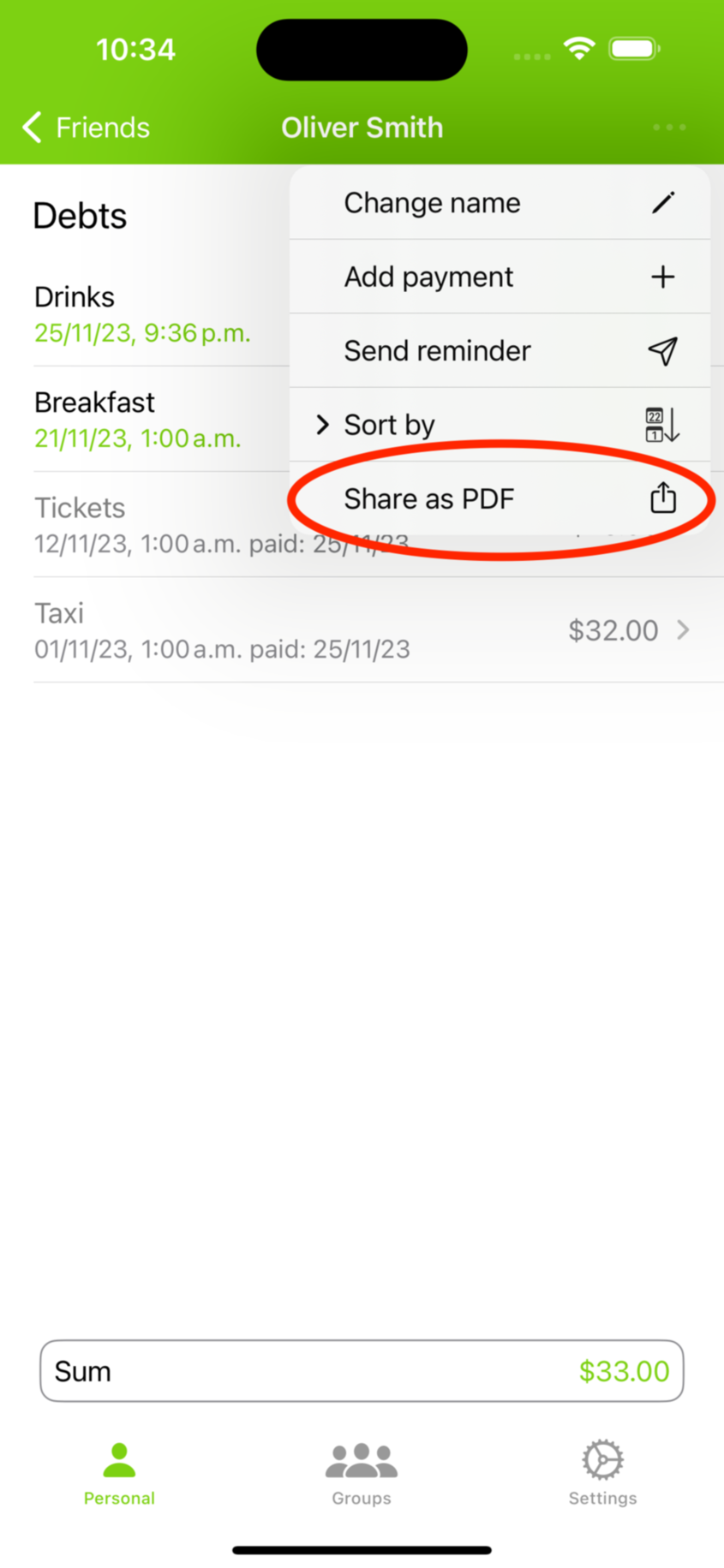
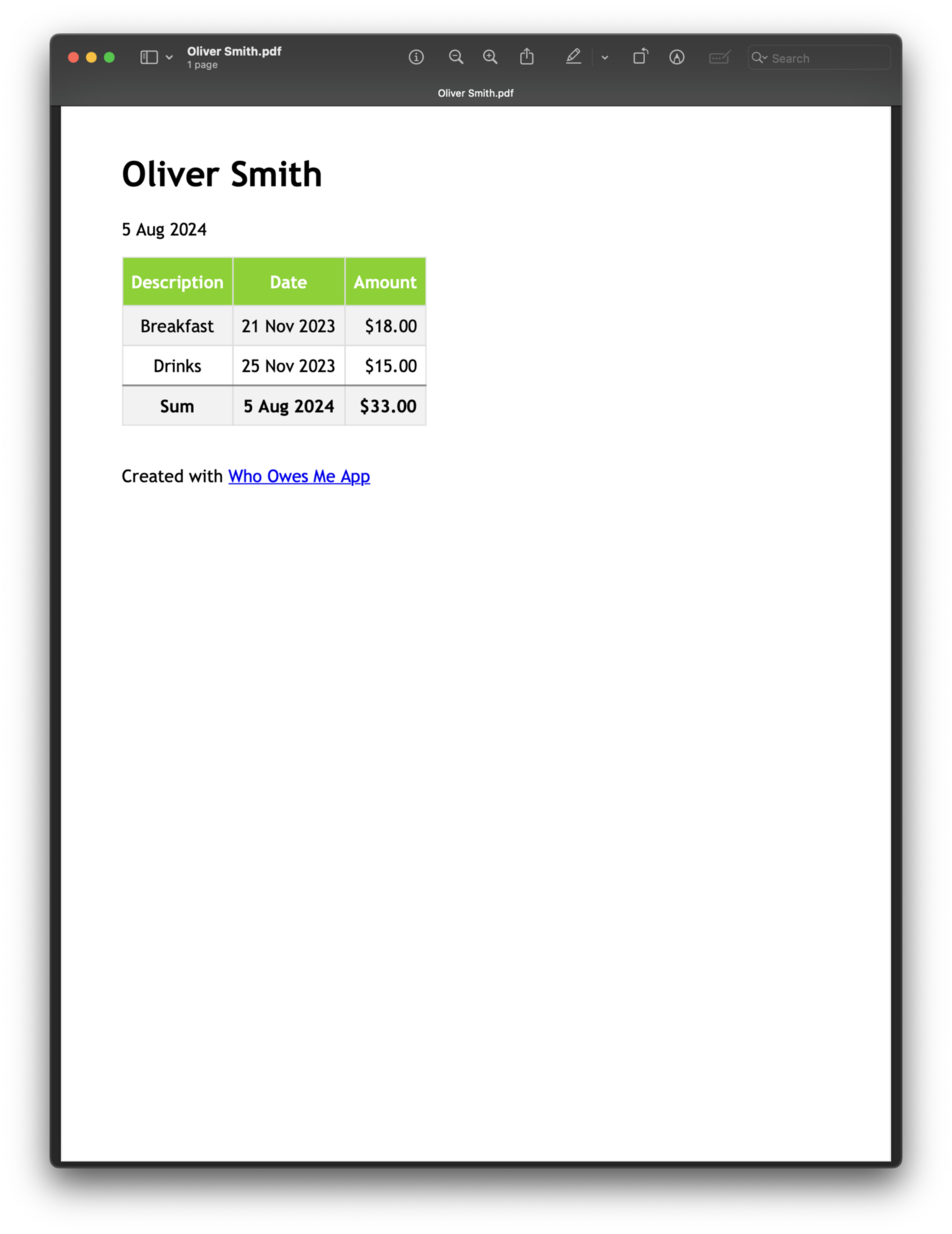
FAQ - Share folder or person as a PDF
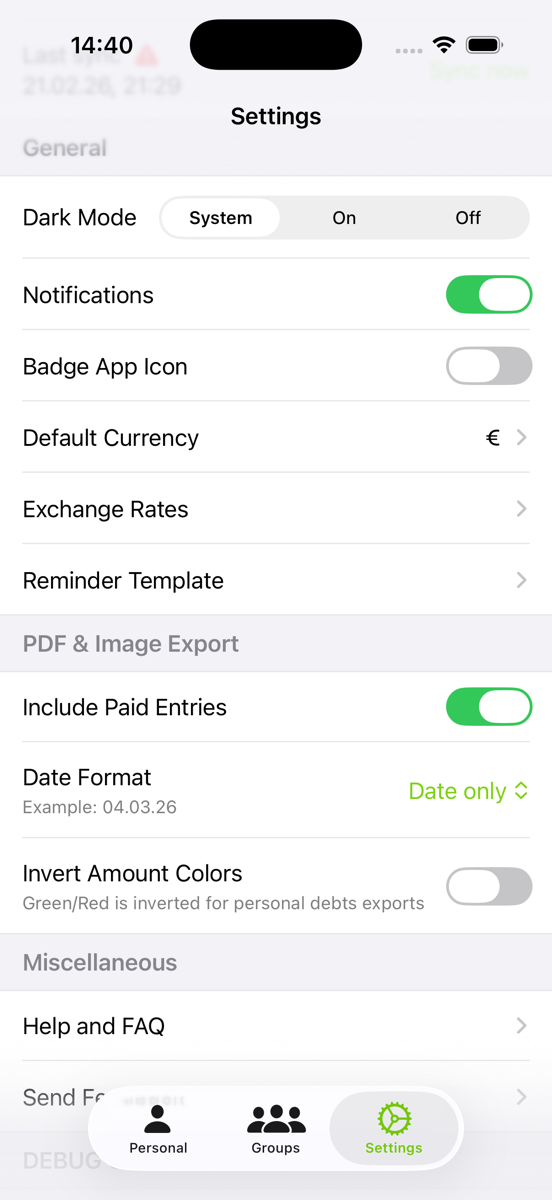
In the app settings, you have the option to customize several features. For instance, you can choose to include entries marked as paid, display only the date, or show both the date and time. Additionally, there's an option to invert the amount colors, which can be helpful for sending PDFs from the recipient's perspective. When this option is activated, money they owe you will appear in red, while money they are due to receive will be shown in green.